> ## Documentation Index
> Fetch the complete documentation index at: https://docs.leen.dev/llms.txt
> Use this file to discover all available pages before exploring further.
# Rapid7 InsightVM Vulnerability Management Instructions
> Instructions on how to generate credentials for Rapid7's InsightVM Vulnerability Management platform and the required permissions.
For Leen to authenticate with Rapid7 InsightVM, we require the following:
1. **Base URL**: The Base URL or the Base Path for the Rapid7 InsightVM API. This is in the format: `https://{region}.api.insight.rapid7.com`.
2. **API Key**: A unique API Key tied to an Organization in Rapid7. In the following section, we will cover how to create a new API key with the required scopes.
InsightVM **must** be connected to Rapid7's Insight Cloud Platform, you can refer to the [official Rapid7 documentation](https://docs.rapid7.com/insightvm/activating-your-console-on-the-insight-platform).
### Permissions and User setup
Due to restrictions with Rapid7's API, an Organization Level API Key is required.
Here is how you can create a new Organization Level API Key:
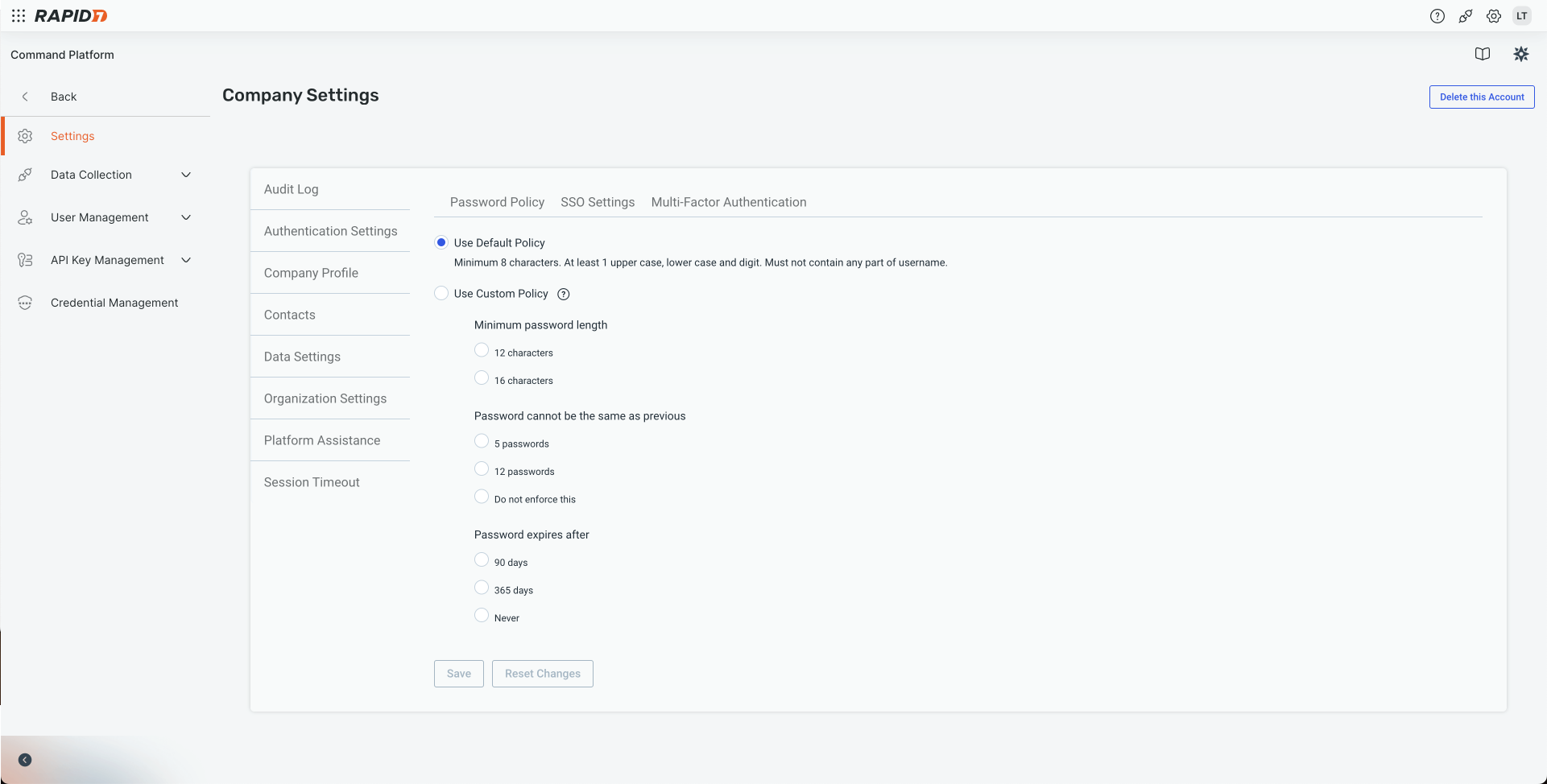
In the Rapid7 console, navigate to 'Company Settings'.
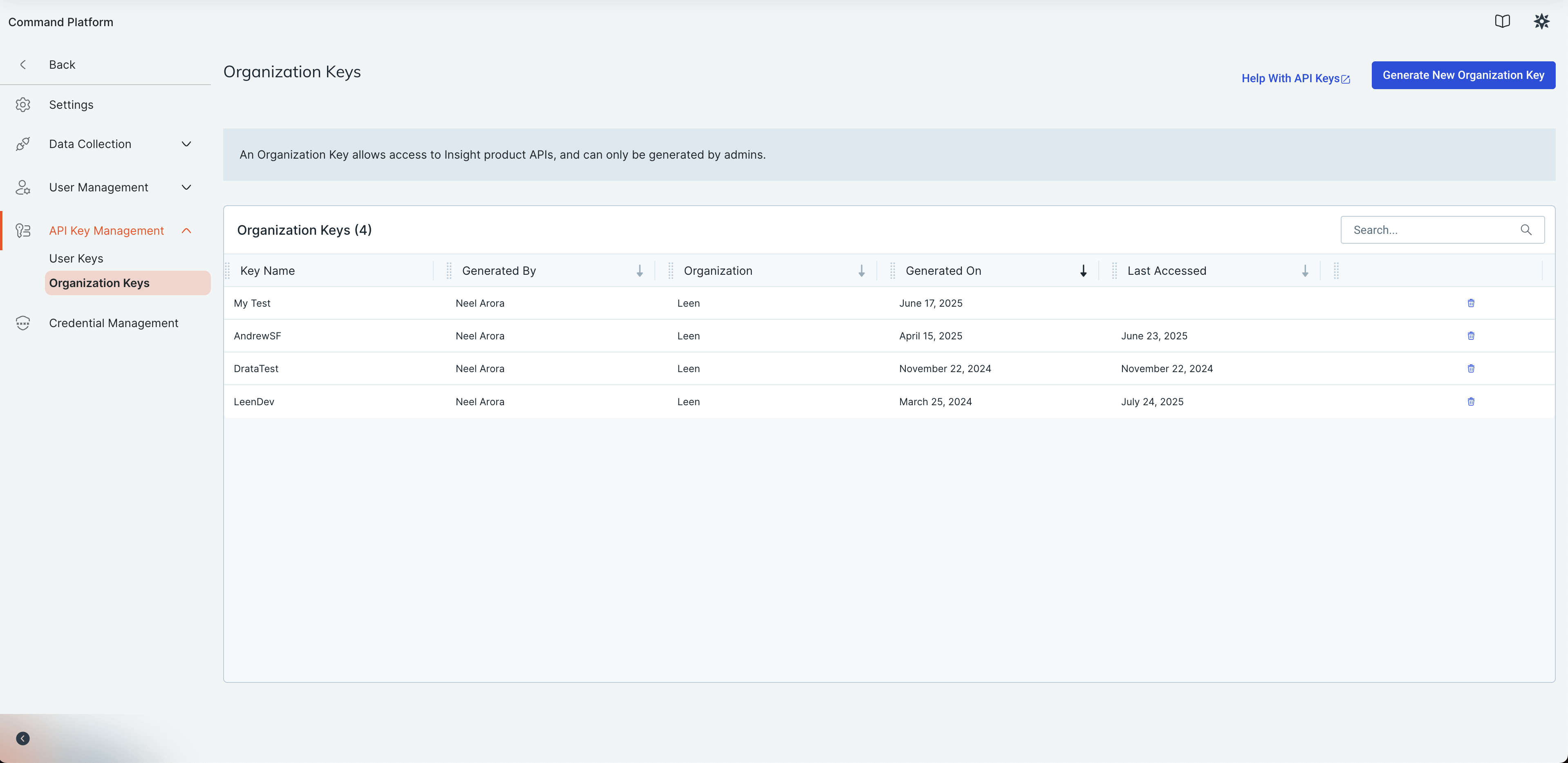
 Navigate to 'API Key Management' and choose 'Organization Keys'. Click on the **Generate New Organization Key** button.
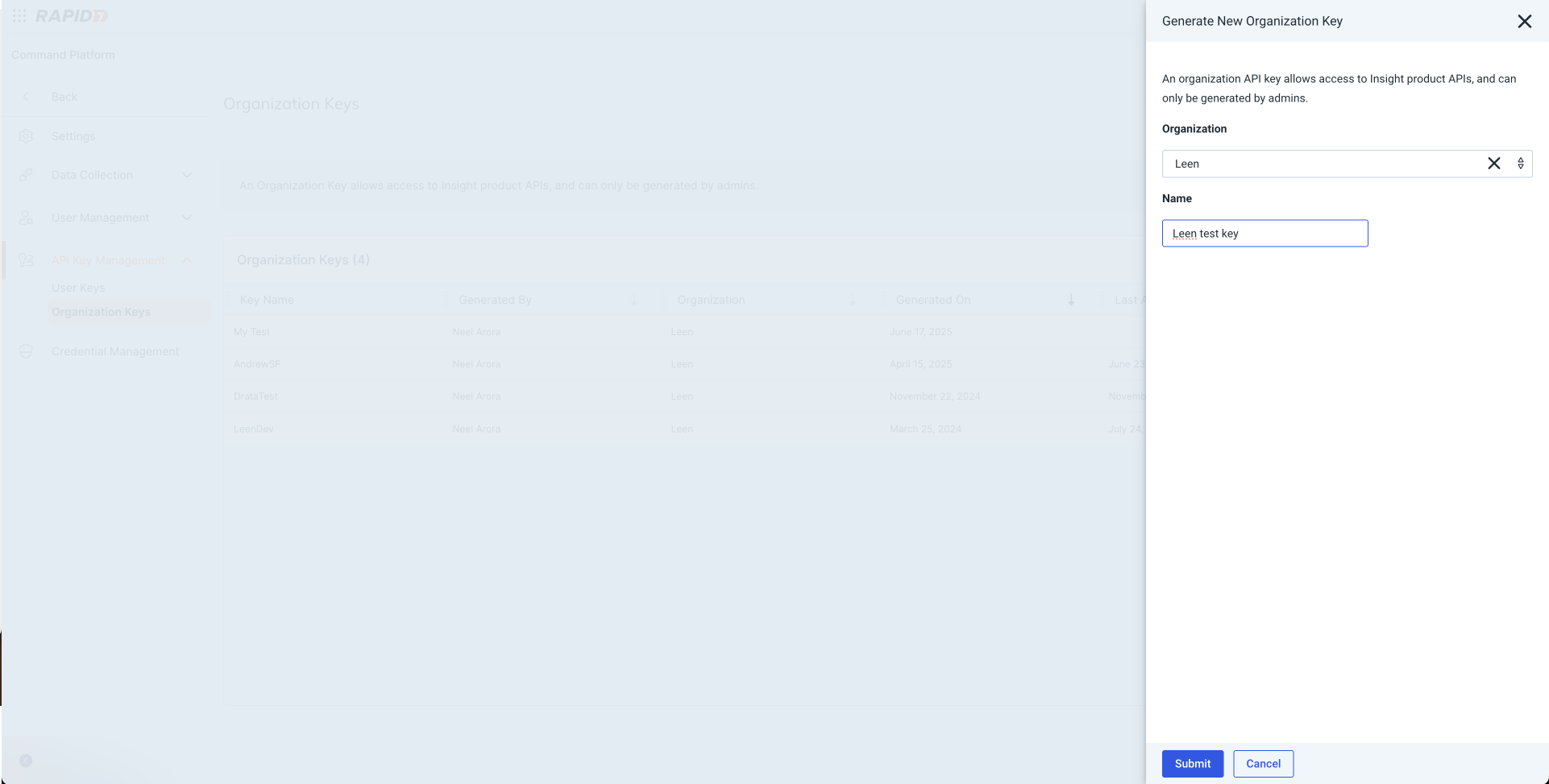
 Next, you will tie your key to an Organization in your Rapid7 environment and name it.
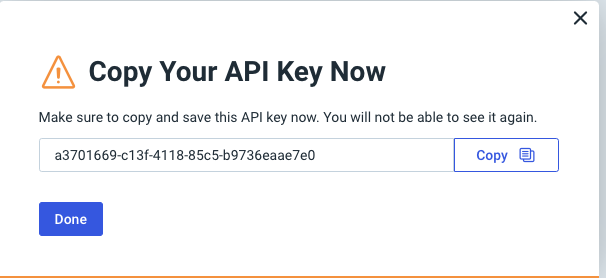
 Once you click Submit, you should see the API Key generated. Copy this API Key and store it securely.
 For more information on how to create an API Key, you can refer to the [official Rapid7 documentation](https://docs.rapid7.com/insight/managing-platform-api-keys/).