> ## Documentation Index
> Fetch the complete documentation index at: https://docs.leen.dev/llms.txt
> Use this file to discover all available pages before exploring further.
# Snyk Connection Instructions
> Instructions on how to onboard a Snyk Integration
## Snyk App
Leen supports Snyk integrations via OAuth2 and API Keys for both Snyk US, Snyk US-2, and Snyk EU. To integrate with Snyk, users will have to authorize Leen's Snyk app or provide a valid API key. This will allow Leen to access the appropriate Snyk resources in your account.
When using OAuth2, Leen takes care of the code-flow and access token management, so you don't have to worry about it.
Snyk currently does not offer their V1 API in the EU region. If you are an EU customer, you may experience slight degradation in Leen's data mappings when compared to the US. Here are all the fields that Leen will not be able to map for EU customers:
* `package_name`
* `package_version`
* `platform`
* `publication_time`
* `is_patchable`
* `cvss_score`
* `remediation`
## Onboarding
Follow the steps below to onboard a user to our Snyk Integration.
With your Leen API Key and your Customer's Org ID, make an API request to create a new Snyk Connection.
More information can be found on the [API Reference page.](/api-reference/provisioning/add-new-connection)
```json theme={null}
{
"vendor": "SNYK",
"credentials": {
"base_url": "https://app.us.snyk.io", // OPTIONAL: only needed for US-2 and EU regions
}
}
```
The response will look like this:
```json theme={null}
{
"id": "e73fd0f2-9c4a-4911-923a-c07a3a3fa414",
"vendor": "SNYK",
"refresh_interval_secs": 14400,
"timeout_secs": 1800,
"organization_id": "5718a24d-f9c8-4276-af80-088ac433e28f",
"oauth2_authorize_url": "https://app.snyk.io/oauth2/authorize?....."
}
```
Redirect the user to the `oauth2_authorize_url` from the previous step in a new tab.
This will prompt the user to authorize Leen's Snyk app to access their Snyk resources.
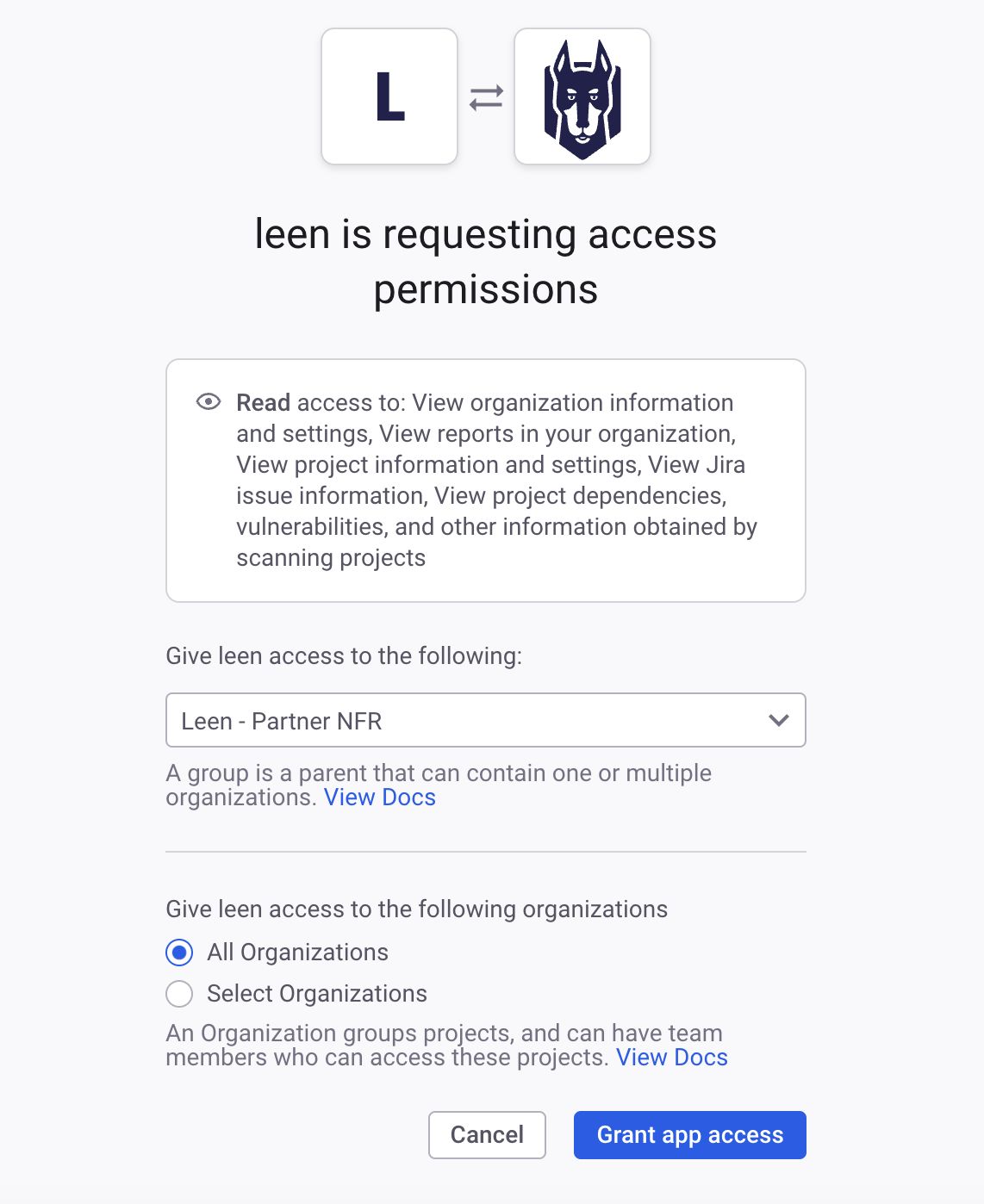 Once the user has authorized the app, they will be redirected to Leen on a successful authorization.
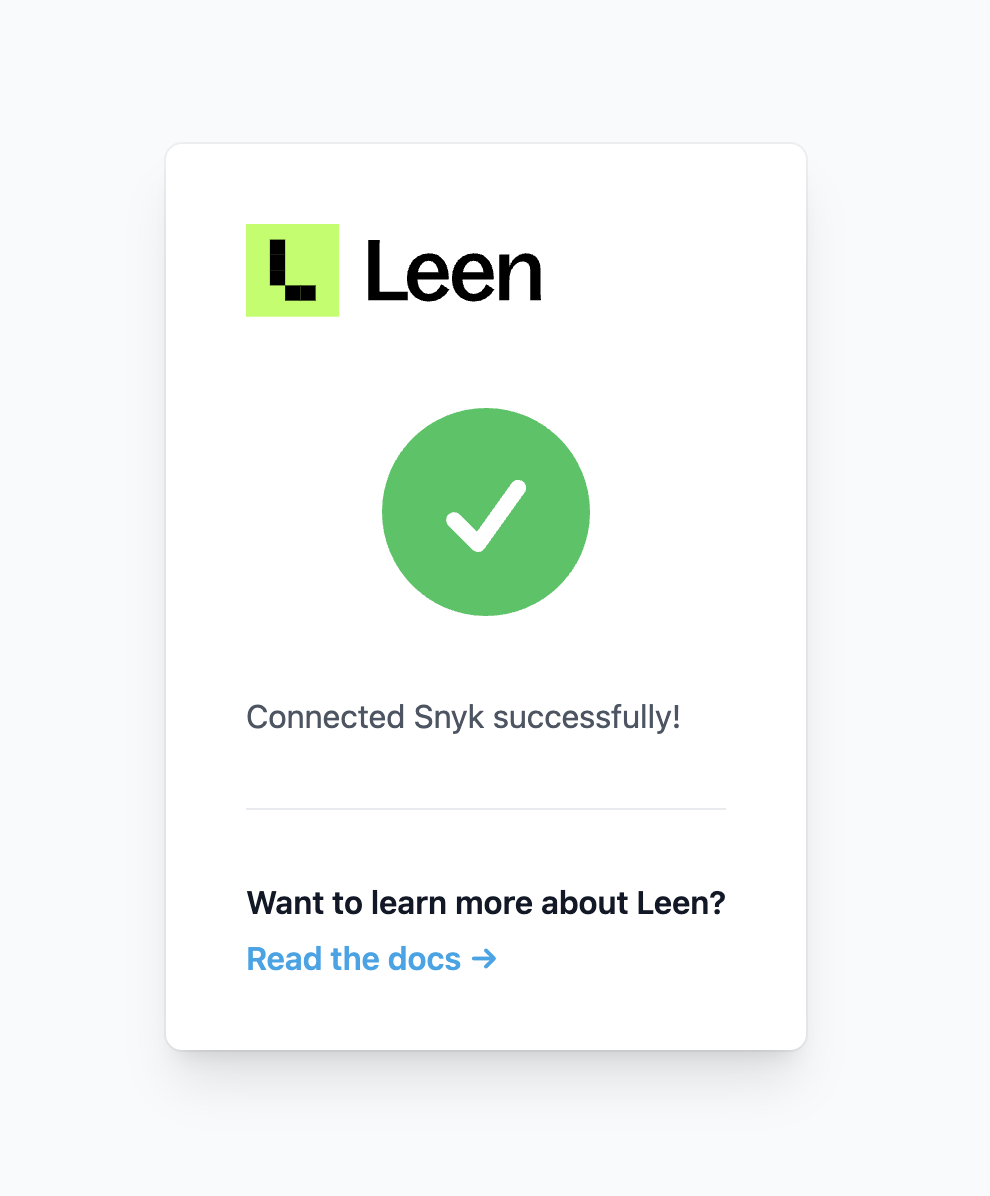 Now that the user has authorized the app, you can pull data from Snyk using the `connection_id` from the first step.
More information can be found on the [API Reference page.](/api-reference/appsec/get-issues)
### API Key Authentication
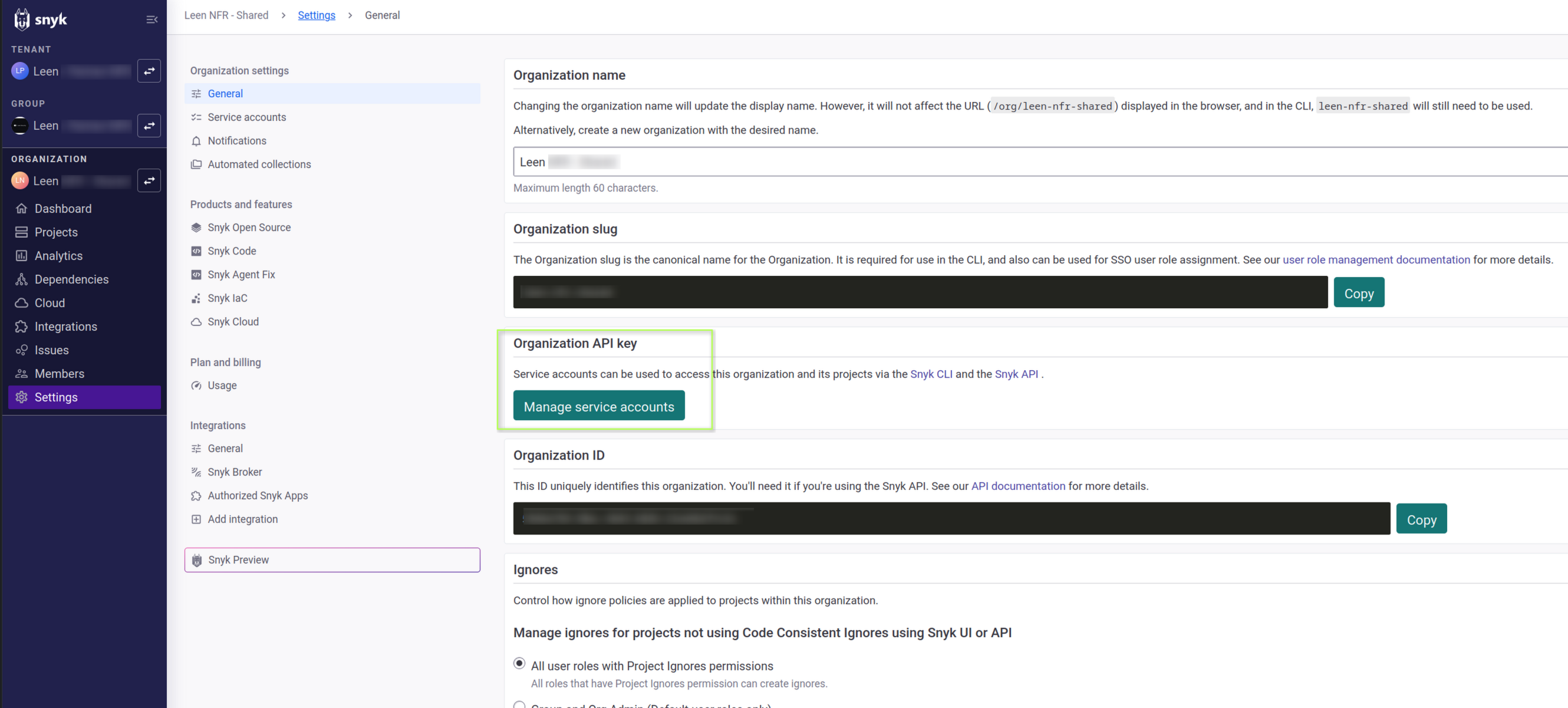
In the Snyk organization you want to connect, go to Settings and click "Manage Service Accounts".
Now that the user has authorized the app, you can pull data from Snyk using the `connection_id` from the first step.
More information can be found on the [API Reference page.](/api-reference/appsec/get-issues)
### API Key Authentication
In the Snyk organization you want to connect, go to Settings and click "Manage Service Accounts".
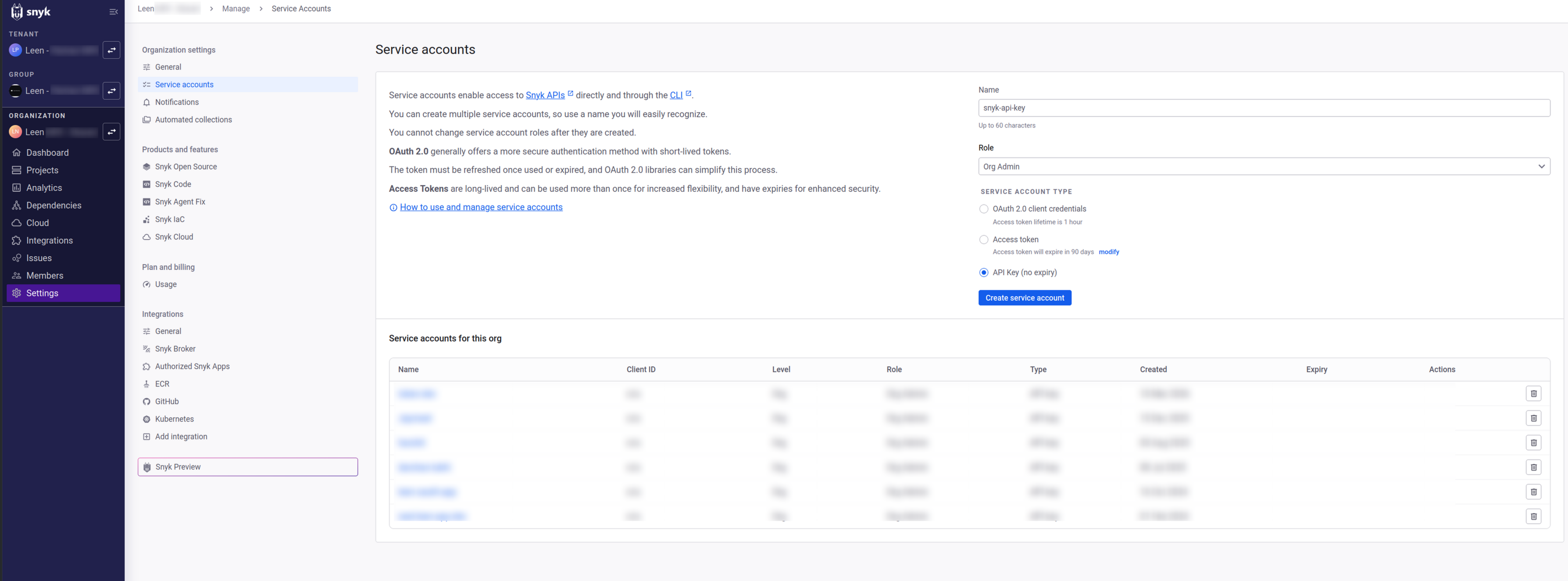
 Under Service Accounts, enter a name, select **Org Admin** as the role, and choose **API Key (no expiry)**.
Click "Create service account".
Under Service Accounts, enter a name, select **Org Admin** as the role, and choose **API Key (no expiry)**.
Click "Create service account".
 Repeat for each Snyk organization you want to include, or use a group-level service account if applicable.
With your Leen API Key and your Customer's Org ID, make an API request to create a new Snyk Connection with the API token created in the previous step.
More information can be found on the [API Reference page.](/api-reference/provisioning/add-new-connection)
```json theme={null}
{
"vendor": "SNYK",
"credentials": {
"base_url": "https://app.us.snyk.io", // OPTIONAL: only needed for US-2 and EU regions
"api_token": "..."
}
}
```
The response will look like this:
```json theme={null}
{
"id": "e73fd0f2-9c4a-4911-923a-c07a3a3fa414",
"vendor": "SNYK",
"refresh_interval_secs": 14400,
"timeout_secs": 1800,
"organization_id": "5718a24d-f9c8-4276-af80-088ac433e28f",
}
```
Now that the connection has been created, you can pull data from Snyk using the `connection_id` from the previous step.
More information can be found on the [API Reference page.](/api-reference/appsec/get-issues)
Repeat for each Snyk organization you want to include, or use a group-level service account if applicable.
With your Leen API Key and your Customer's Org ID, make an API request to create a new Snyk Connection with the API token created in the previous step.
More information can be found on the [API Reference page.](/api-reference/provisioning/add-new-connection)
```json theme={null}
{
"vendor": "SNYK",
"credentials": {
"base_url": "https://app.us.snyk.io", // OPTIONAL: only needed for US-2 and EU regions
"api_token": "..."
}
}
```
The response will look like this:
```json theme={null}
{
"id": "e73fd0f2-9c4a-4911-923a-c07a3a3fa414",
"vendor": "SNYK",
"refresh_interval_secs": 14400,
"timeout_secs": 1800,
"organization_id": "5718a24d-f9c8-4276-af80-088ac433e28f",
}
```
Now that the connection has been created, you can pull data from Snyk using the `connection_id` from the previous step.
More information can be found on the [API Reference page.](/api-reference/appsec/get-issues)