> ## Documentation Index
> Fetch the complete documentation index at: https://docs.leen.dev/llms.txt
> Use this file to discover all available pages before exploring further.
# GitHub Advanced Security
> Instructions to create a connection with GitHub for findings related to Code Scanning, Secrets Scanning and Dependabot Alerts
## Supported Data Models
* [Vulnerability Findings](/integrations/vulnerability-findings-v2)
* type: `code`
* Resources
* type: `repository`
## Create a Connection for GitHub Advanced Security
1. With Leen API Key and Customer's Org ID, make an API request to create a new GitHub Connection.
More information can be found on the [API Reference page.](/api-reference/provisioning/add-new-connection)
```json theme={null}
{
"vendor": "GITHUB"
}
```
The response will look like this:
```json theme={null}
{
"id": "c54de187-df62-4e95-b10f-0ab53b095d9d",
"vendor": "GITHUB",
"refresh_interval_secs": 14400,
"timeout_secs": 1800,
"organization_id": "fbd8b095-3c39-4137-9478-c32308444202",
"oauth2_authorize_url": "https://github.com/apps/.../installations/new?....."
}
```
## Onboarding GitHub Advanced Security
Follow the steps below to onboard your environment to our GitHub Advanced Security integration.
1. Open the `oauth2_authorize_url` from the connection creation step.
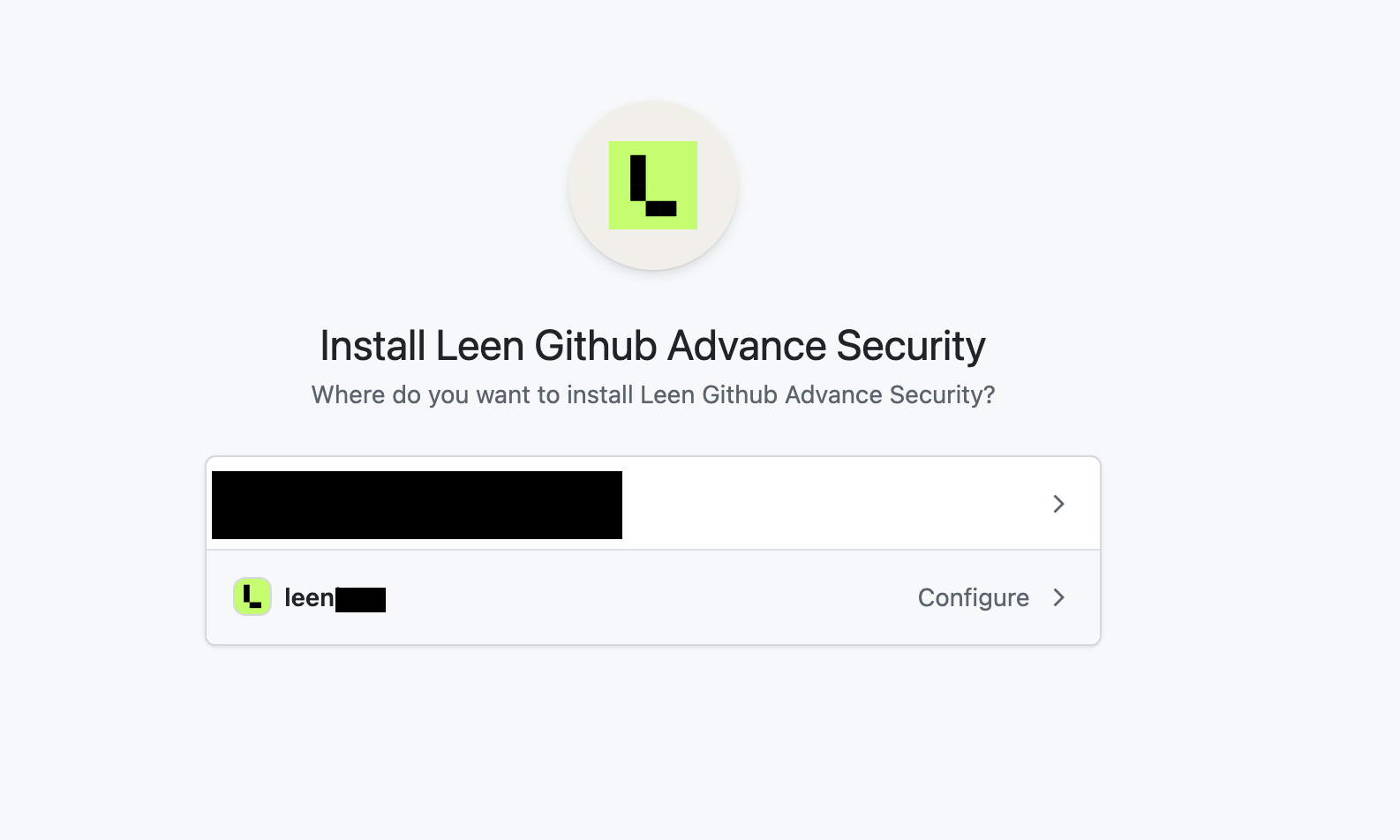
2. Select the account/organization for which the github app needs to be installed for access to GitHub Advanced Security Alerts.
 3. Select the repositories that need to be authorized for the access. (Selection possible for all repositories or specific ones as well.)
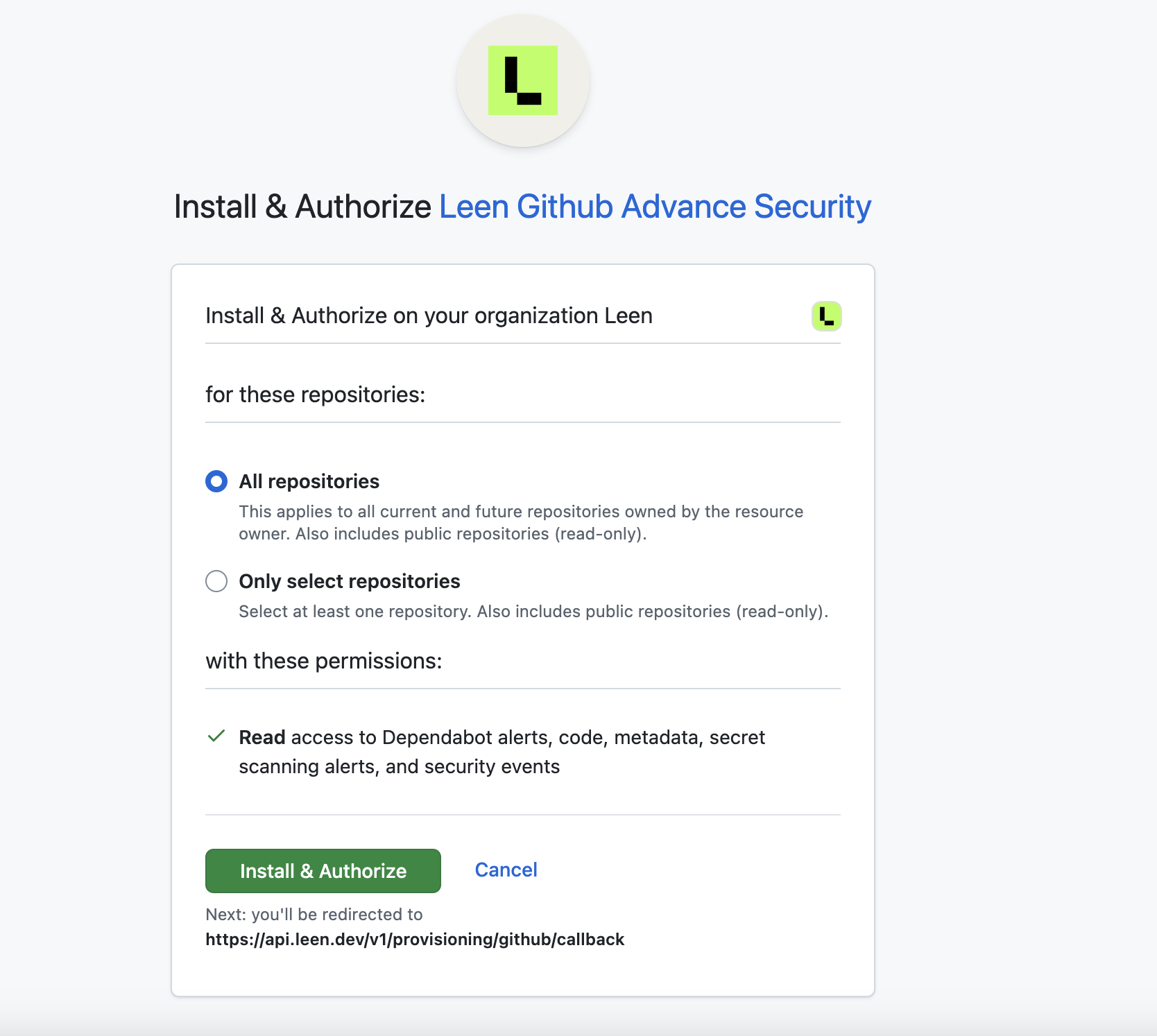 4. Click `Install and Authorize` button to complete the GitHub app installation.
5. The page will be redirected to Leen on a successful authorization.
4. Click `Install and Authorize` button to complete the GitHub app installation.
5. The page will be redirected to Leen on a successful authorization.