

Prefer to use your own application? The app-only route has no authorizing user and grants nothing to a Leen-owned application, so none of the admin consent requirements below apply to it. See Connecting with your own app registration at the end of this page.
Admin Consent Requirement
On this route, the user authorizing the Microsoft Defender connection must be able to grant tenant-wide admin consent. This route uses the/adminconsent endpoint, which requires admin consent to authorize the application on behalf of the entire organization. Microsoft Defender APIs require application permissions that need admin consent to access organizational data across all users.
Important: Application registration only defines which permissions the application requires. A Microsoft Entra tenant administrator must explicitly grant these permissions by granting admin consent. This must be done per tenant and must be performed every time the application permissions are changed.
Roles That Can Grant Admin Consent
Privileged Role Administrator (Recommended)- Can grant consent for apps requesting any permission, for any API
- No limitations on API types or permission scopes
- Full admin consent capabilities
- Can grant consent for apps requesting any permission for any API
- Limitation: Cannot grant consent for Microsoft Graph app roles (application permissions)
- Can grant all Microsoft Defender API permissions (uses WindowsDefenderATP API, not Microsoft Graph)
- Can grant consent for apps requesting any permission for any API
- Limitation: Cannot grant consent for Microsoft Graph app roles (application permissions)
- Can grant all Microsoft Defender API permissions
- Can grant consent for any application
- Has full access to all administrative features
- Can grant admin consent without restrictions
Which Role to Use
Recommendation: Use a Privileged Role Administrator, Cloud Application Administrator, or Global Administrator account for the authorization in step 2. Since Microsoft Defender uses the WindowsDefenderATP API (not Microsoft Graph), the Cloud Application Administrator role has sufficient permissions.
Key Points
- Admin consent is required to grant application permissions to Microsoft Defender APIs
- The authorizing user must have one of the admin roles listed above
- Permissions must be explicitly granted even after application registration
- Admin consent must be re-granted if application permissions are changed
Microsoft Defender App
Leen supports Microsoft Defender for Endpoint two ways: through Leen’s own Microsoft Defender app, or through an app registration the customer creates in their own tenant. Either authorizes Leen to read the appropriate Microsoft Defender resources in the organization’s account. Admin consent (the default). Users authorize Leen’s Microsoft Defender app, which is an OAuth2 app. Leen takes care of the OAuth2 code-flow and access token management, so you don’t have to worry about it. Everything above about admin roles and consent applies to this route. Your own app registration. The customer registers an application in their own Microsoft Entra tenant, grants it the Defender permissions themselves, and supplies the tenant ID, application ID and client secret. Leen then authenticates as that application. Nothing is redirected to Microsoft, so there is no consent step for Leen to run and nooauth2_authorize_url in the response. See
Connecting with your own app registration below.
The two routes are mutually exclusive per connection. Supplying the three credential values selects
the app-only route; omitting them selects admin consent. A connection created one way keeps that
identity — an ordinary update cannot move it to the other.
Onboarding
Follow the steps below to onboard your environment to our Microsoft Defender app.1
Create Microsoft Defender Connection
With your Leen API Key and your Customer’s Org ID, make a API request to create a new Microsoft Defender Connection.
More information can be found on the API Reference page.
The response will look like this:
Example POST body and response
Example POST body and response
2
Granting permission to Leen app for Microsoft Defender
Open the 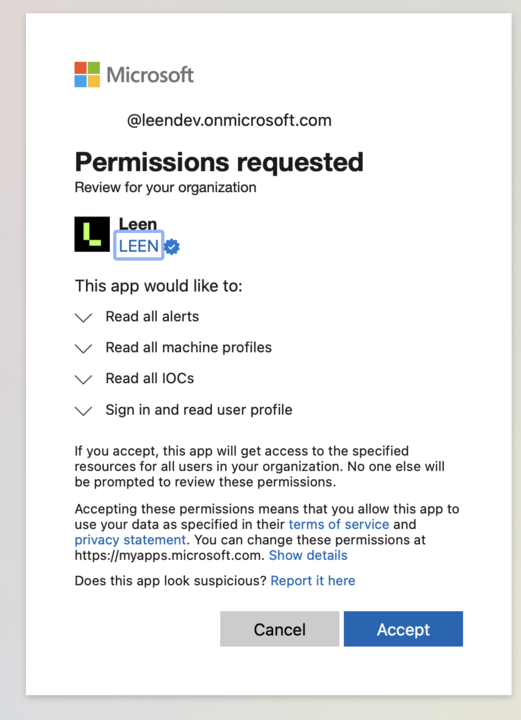
oauth2_authorize_url from the previous step in a new tab.
This will prompt the admin user to authorize Leen’s Microsoft Defender app to access their Microsoft Defender resources.3
Pull Data
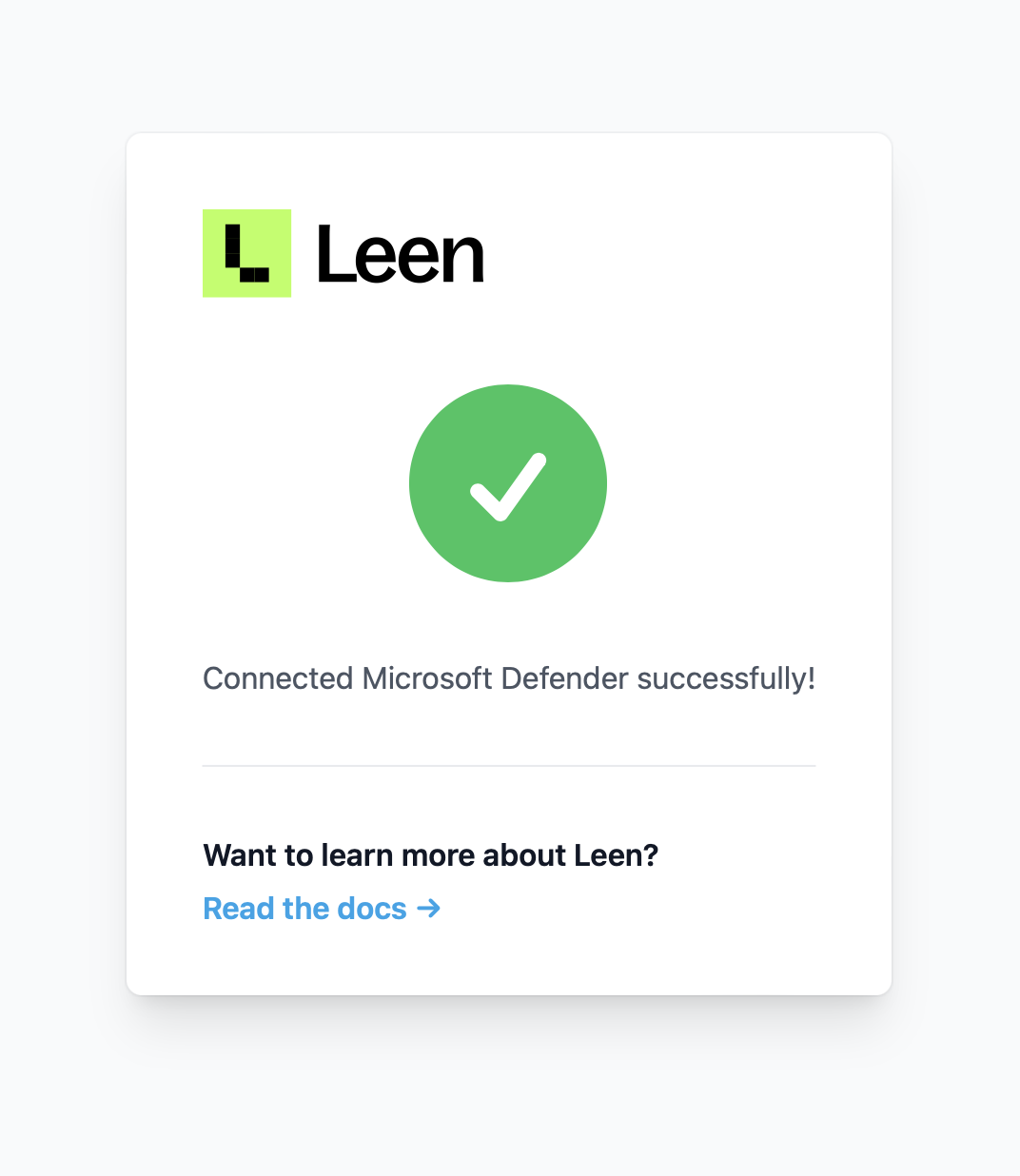
Now that the user has authorized the app, you can pull data from Microsoft Defender using the
connection_id from the first step.
More information can be found on the API Reference page.Connecting with your own app registration
Use this route when the customer would rather Leen authenticated as an application they own and control, instead of granting consent to Leen’s multi-tenant app. It is Microsoft’s documented “access without a user” flow — the customer registers the app, grants it the Defender permissions, and consents to it themselves inside their own tenant.Microsoft’s own walkthrough for creating the app registration is
Create an app to access Microsoft Defender for Endpoint without a user.
The steps below cover what Leen needs from it.
1
Register an application in Microsoft Entra
In the Azure portal, open Microsoft Entra ID > App registrations > New registration.
Give it a name and register it. No redirect URI is required — this application never signs a
user in.From the app’s Overview page, note the Application (client) ID and the
Directory (tenant) ID.
2
Grant the Defender API permissions
Under API permissions, add permissions for APIs my organization uses > WindowsDefenderATP,
and choose Application permissions — not delegated. Leen reads alerts and machines, so
Alert.Read.All and Machine.Read.All are the minimum.Then select Grant admin consent for the tenant. This is the same consent requirement
described above; the difference is that it is granted against the customer’s own application
rather than Leen’s.The roles listed under Roles That Can Grant Admin Consent
apply here too.
3
Create a client secret
Under Certificates & secrets, create a new client secret and copy its Value immediately.
Azure shows the value only once; the Secret ID is not the value and cannot be used.
4
Create the Microsoft Defender connection
With your Leen API Key and your Customer’s Org ID, make an API request to create a new
Microsoft Defender Connection with the three values from the previous steps.
More information can be found on the API Reference page.
The response will look like this:Note there is no
Example POST body and response
Example POST body and response
oauth2_authorize_url. The connection is active immediately — there is
nothing for the customer to click through.All three values are required together. A partial credential is rejected rather than
treated as an admin-consent connection, so a connection can never silently authenticate as
the wrong application.
5
Pull Data
Pull data using the
connection_id from the previous step, exactly as you would for a
consent-based connection.
More information can be found on the API Reference page.